
Managing your WordPress website
Changing text on a page with Elementor
Open a page in Elementor, click the text you want to change, edit it, then publish.
7 steps2 minUpdated 13 November 2026
Your website's pages are built with Elementor. You change them right on the page, so what you see is the end result.
Opening a page in Elementor
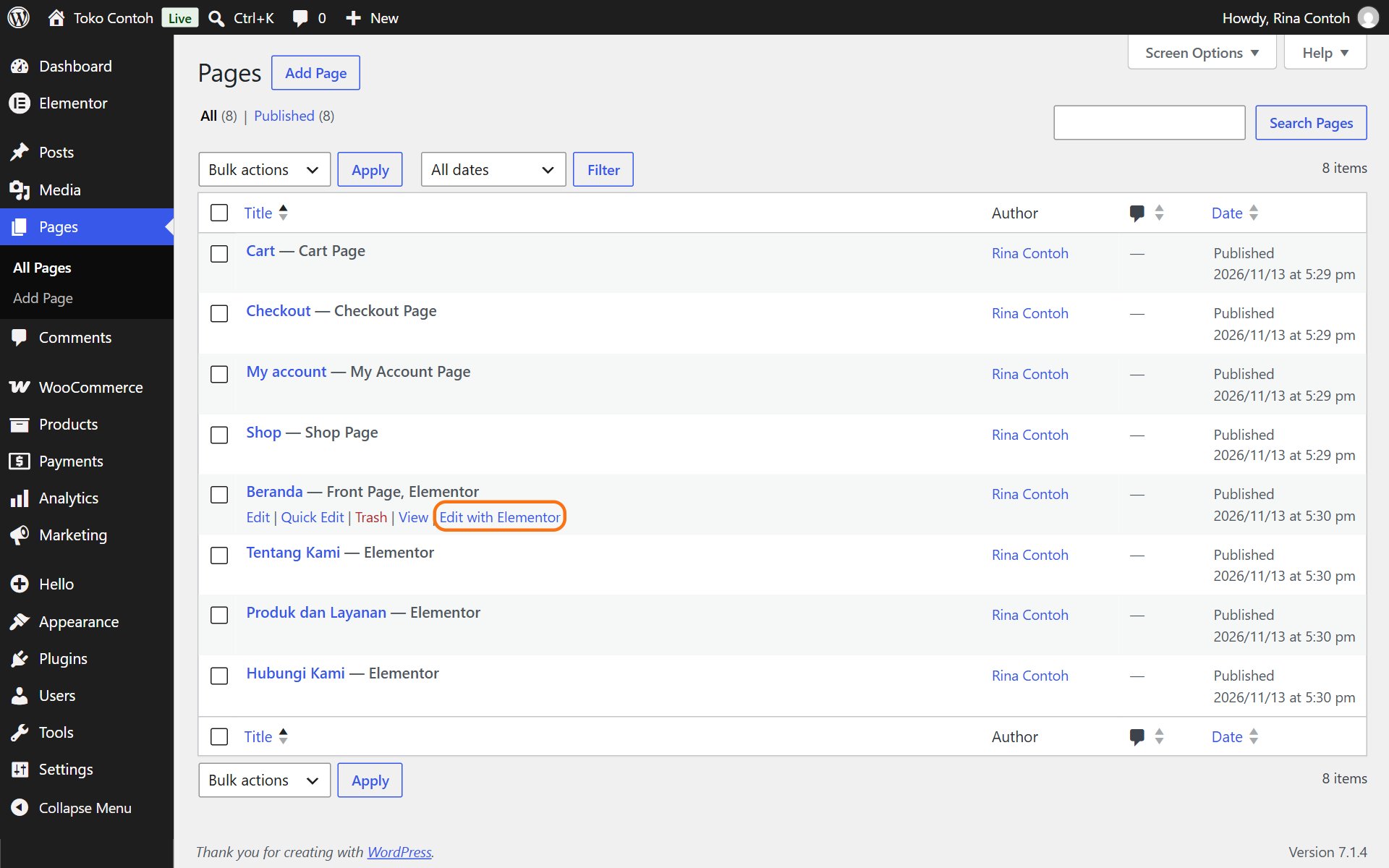
- In the dashboard, open Pages.
- Point at the page you want to change, then click Edit with Elementor.
Changing a heading
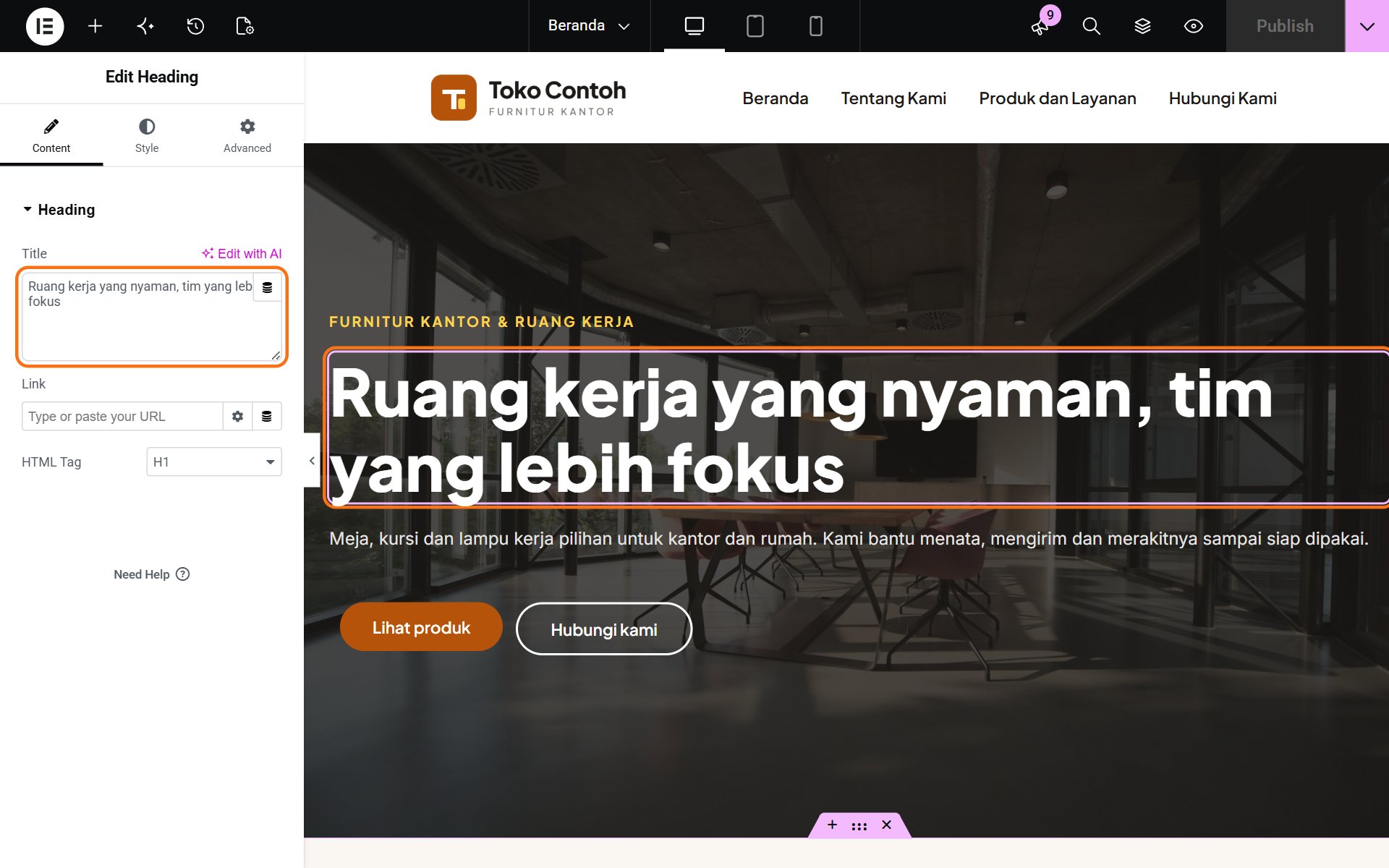
- Click the heading you want to change. The left panel becomes Edit Heading.
- Change the text in the Title box. The page updates as you type.
Changing a paragraph
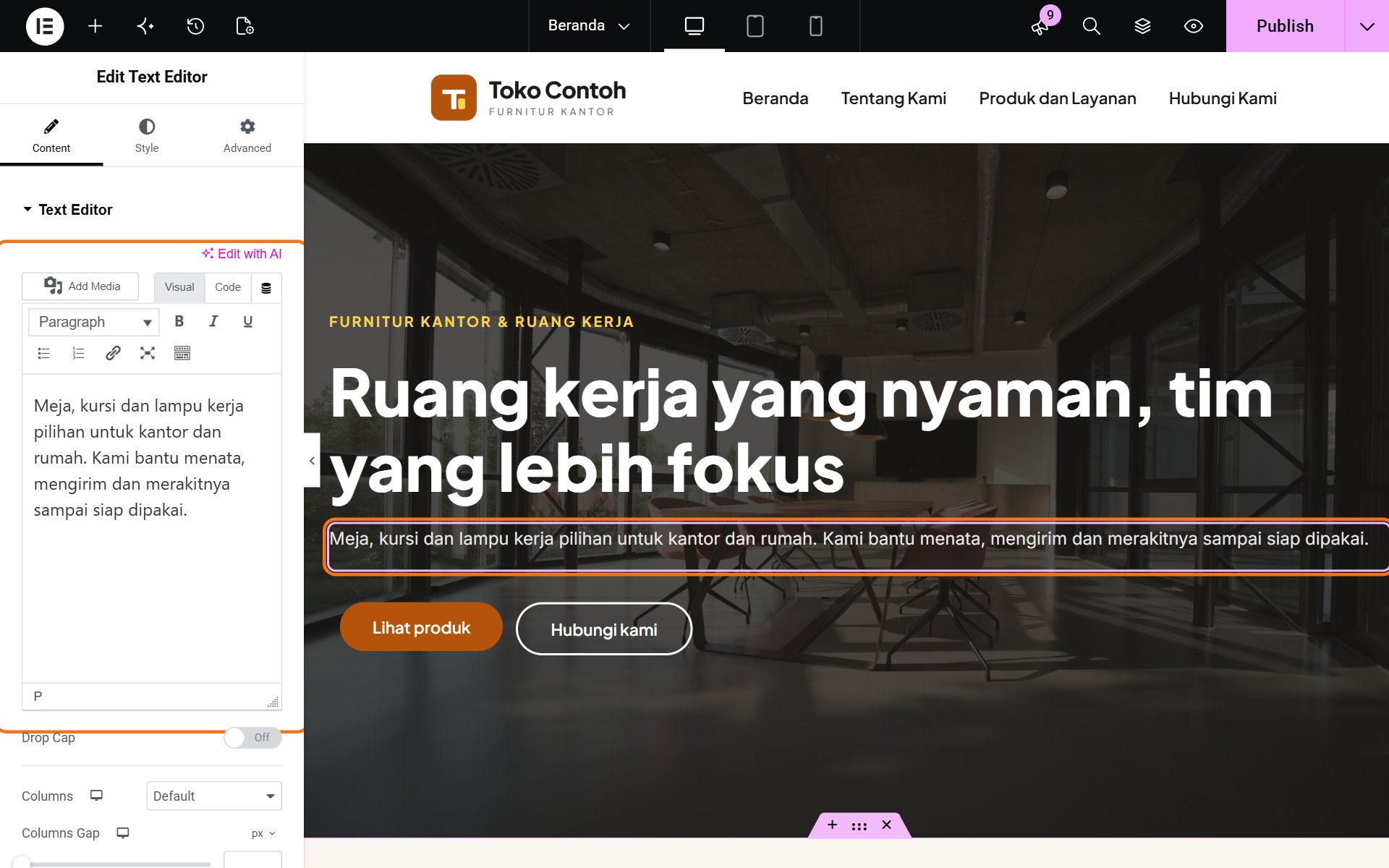
- Click a paragraph. The left panel becomes Edit Text Editor, with the text in a writing box.
- Change the text as in a word processor. The buttons above the box are for bold, italic, links and lists.
Button text works the same way: click the button, then change Text and, if needed, Link.
Saving your changes
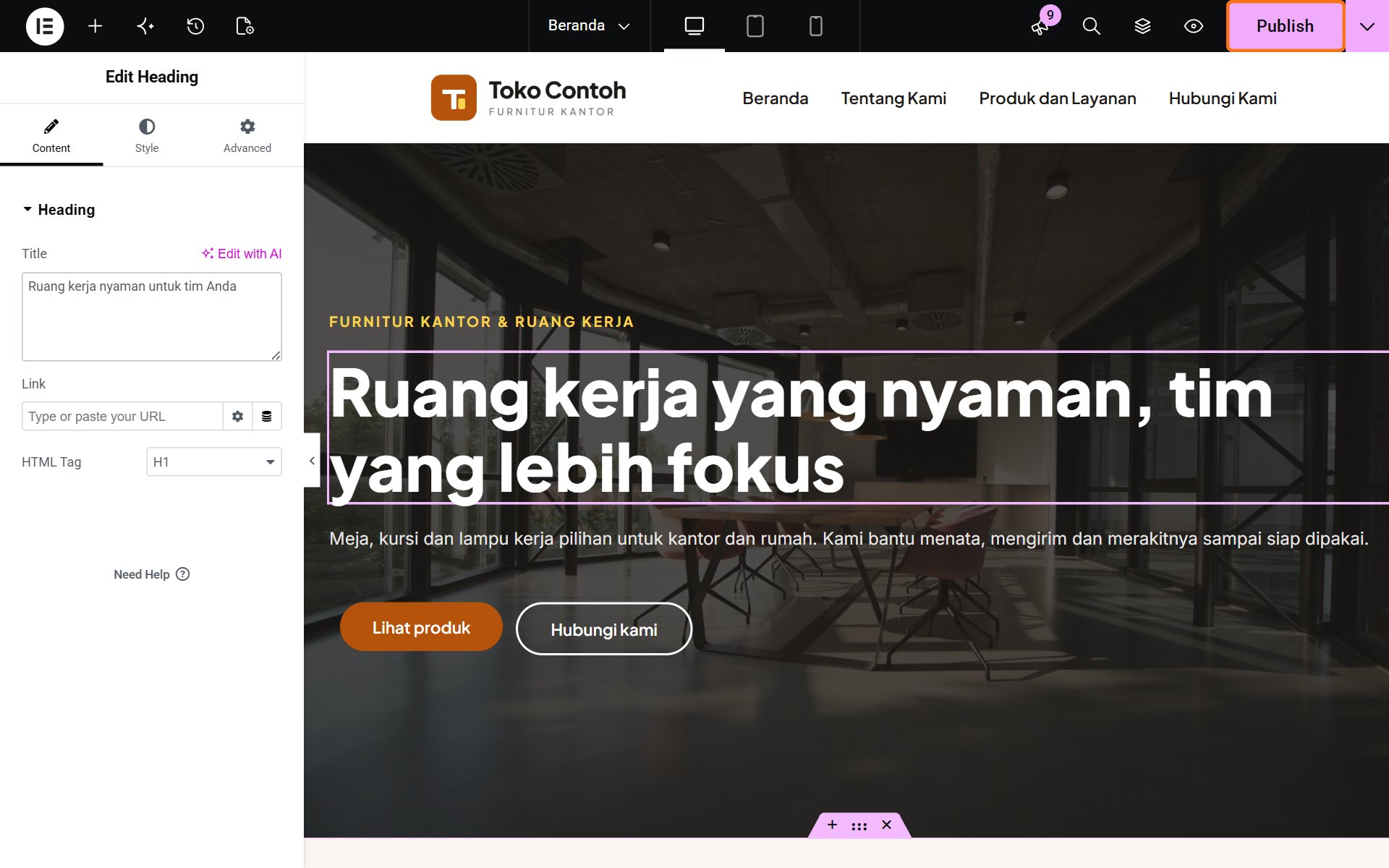
- Click Publish at the top right. The changes show on the website straight away.
Want to see the result before publishing? Click the eye icon (Preview Changes) in the top bar. If you close the editor without Publish, the changes do not show on the website.
Changed the wrong thing? See Going back to an earlier version.
Was this article helpful?