
Managing your WordPress website
Adding and changing online shop products (WooCommerce)
For online shops: add products and change prices, sale prices, photos and stock.
7 steps1 minUpdated 13 November 2026
This guide is for websites with an online shop (the Products and WooCommerce menus in the dashboard).
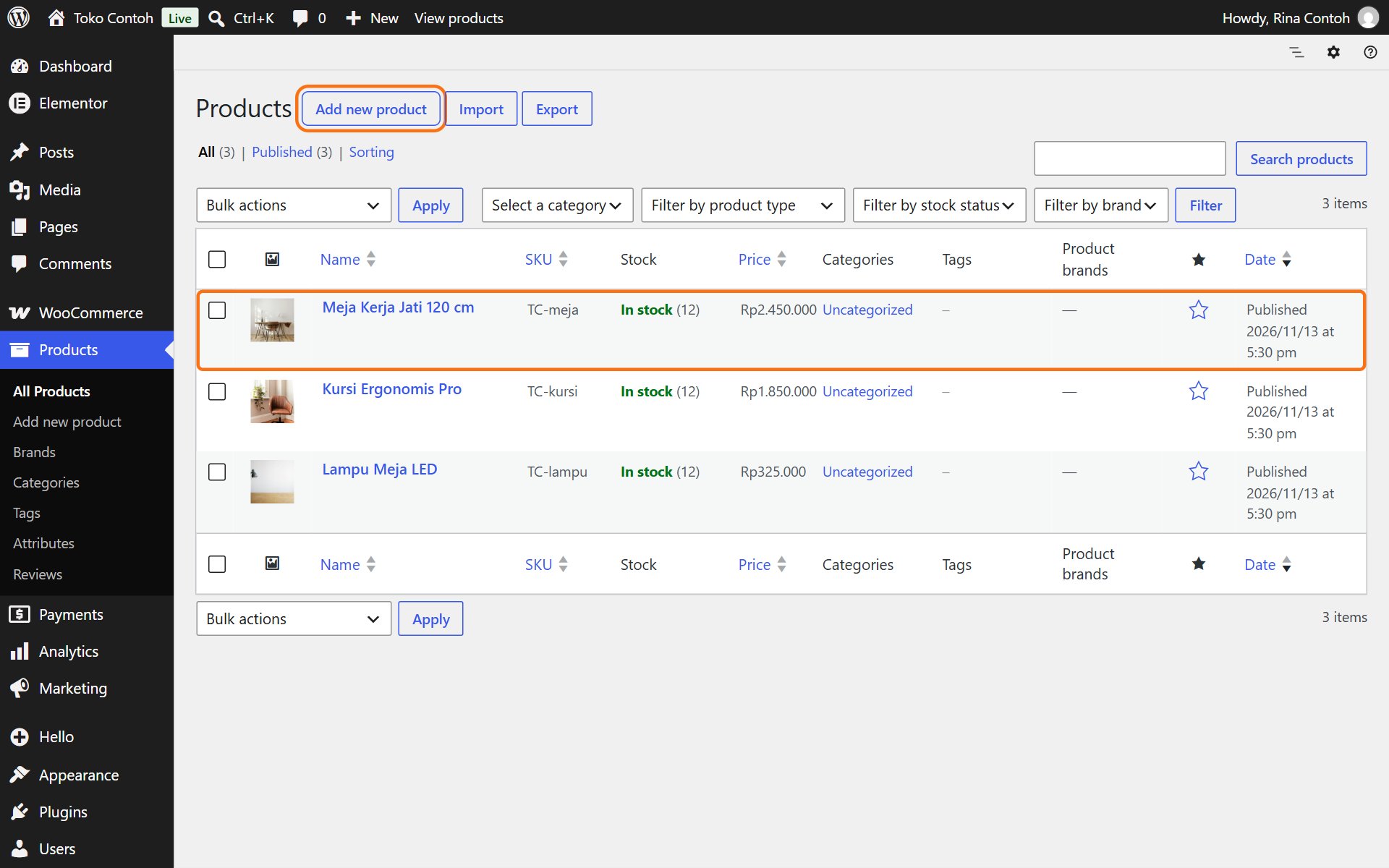
- Open Products. Every product is listed with its stock and price.
- Click a product's name to change it, or Add new product for a new one.
- Fill in the product's name and description.
- Under Product data, on the General tab, fill in Regular price. For a discount, fill in Sale price; click Schedule if the discount only runs on certain dates.
- On the Inventory tab, set the stock quantity or mark it Out of stock.
- On the right, click Set product image for the main photo and Add product gallery images for more photos. Tick the right Product categories.
- Click Publish for a new product, or Update for a changed one.
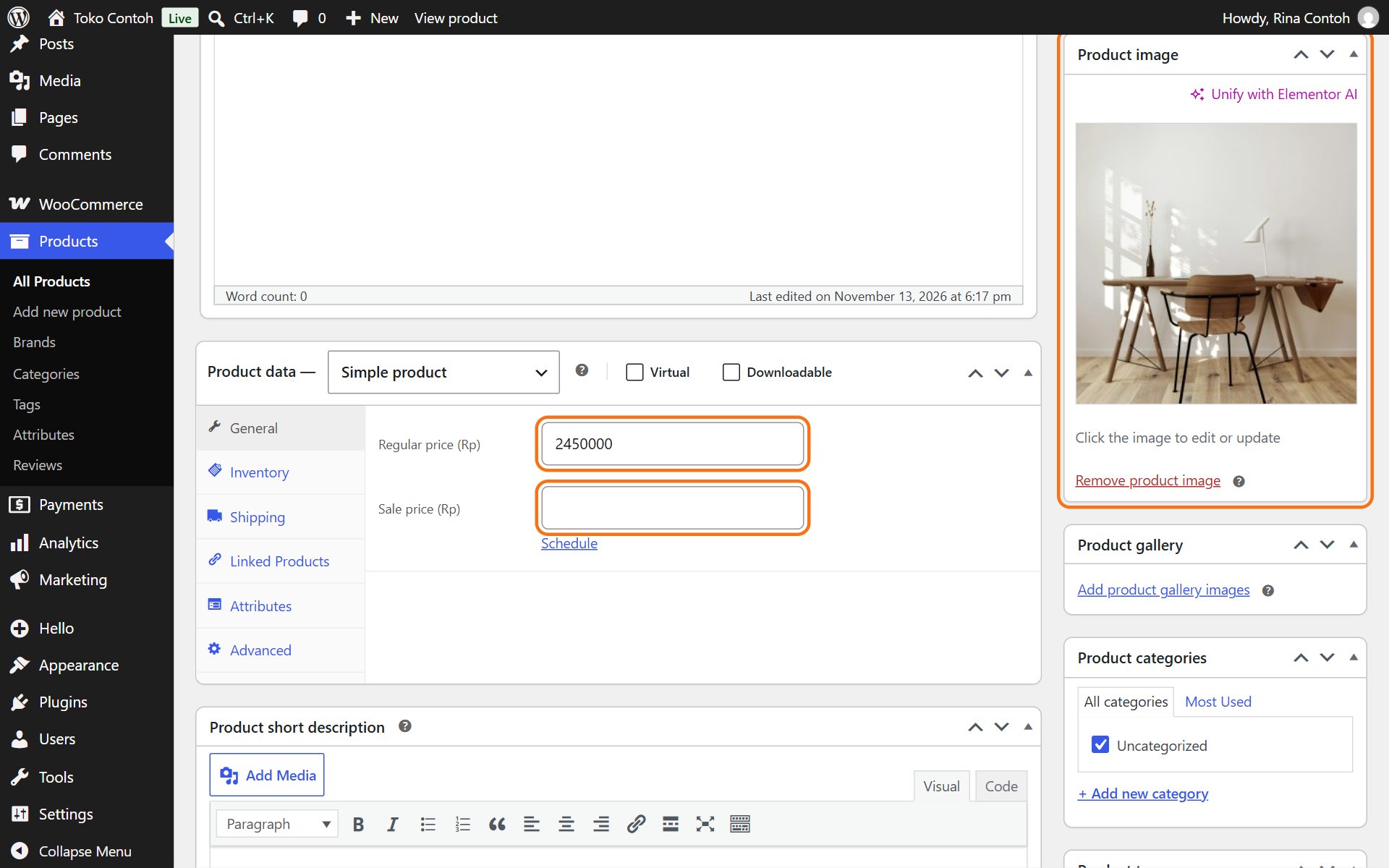
Type prices without dots or commas, for example 2450000. The website shows it as Rp 2.450.000.
New orders are under WooCommerce → Orders. Payment, shipping and tax settings are best changed together with our team.
Was this article helpful?