
Managing your WordPress website
Adding, duplicating and removing parts of a page
Duplicate an existing product card or section, add new elements, and remove the ones you no longer need.
6 steps1 minUpdated 13 November 2026
The safest way to add content is to duplicate a part that already exists, because its design is copied too.
Duplicating or removing
- Open the page in Elementor, then right-click the part you want to copy, for example a product card.
- Choose Duplicate. The copy appears right next to it, and you only need to change its text and picture.
- To remove a part, right-click it and choose Delete.
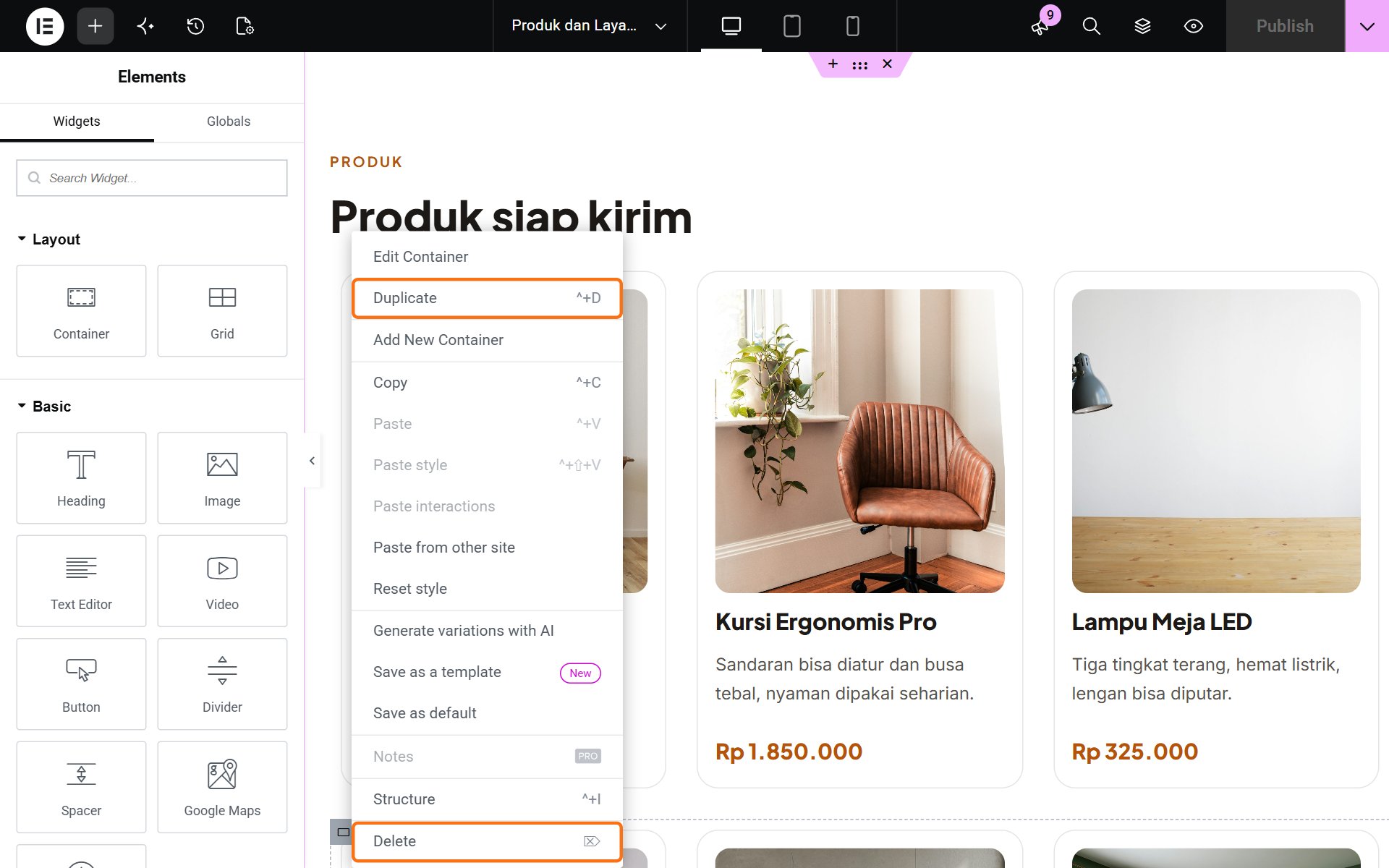
Right-clicking a text or picture copies just that element. Right-clicking the empty space around it copies the whole box with everything in it.
Adding a new element
- Click + at the top left. The left panel lists the elements.
- Drag an element to where you want it on the page. The most used are Heading, Text Editor (a paragraph), Image and Button. Find others with the Search Widget box.
- Fill in the new element, then click Publish.
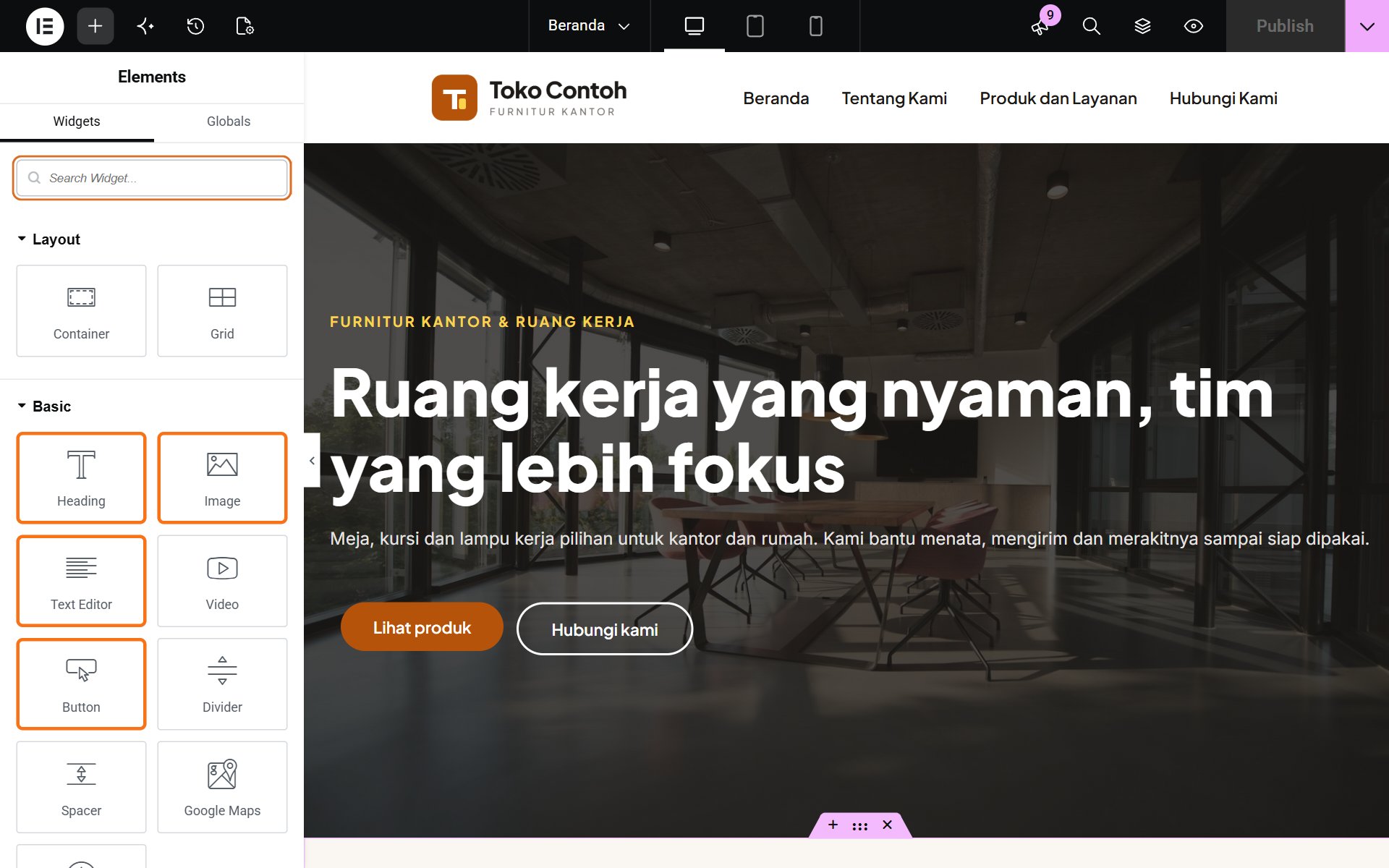
Elements marked Pro or with a padlock are not available on your website. If you need a new, more complex layout, ask our team to build it so it stays tidy on phones.
Was this article helpful?