
Managing your WordPress website
Signing in to the WordPress dashboard
Open your website's admin area, sign in with your account, or reset a forgotten password.
4 steps1 minUpdated 13 November 2026
Every content change happens in the WordPress dashboard, also called wp-admin.
Signing in with your username and password
- Open your website's address and add /wp-admin to the end, for example
yourdomain.com/wp-admin. - Fill in Username or Email Address and Password with the account we gave you, then click Log In.
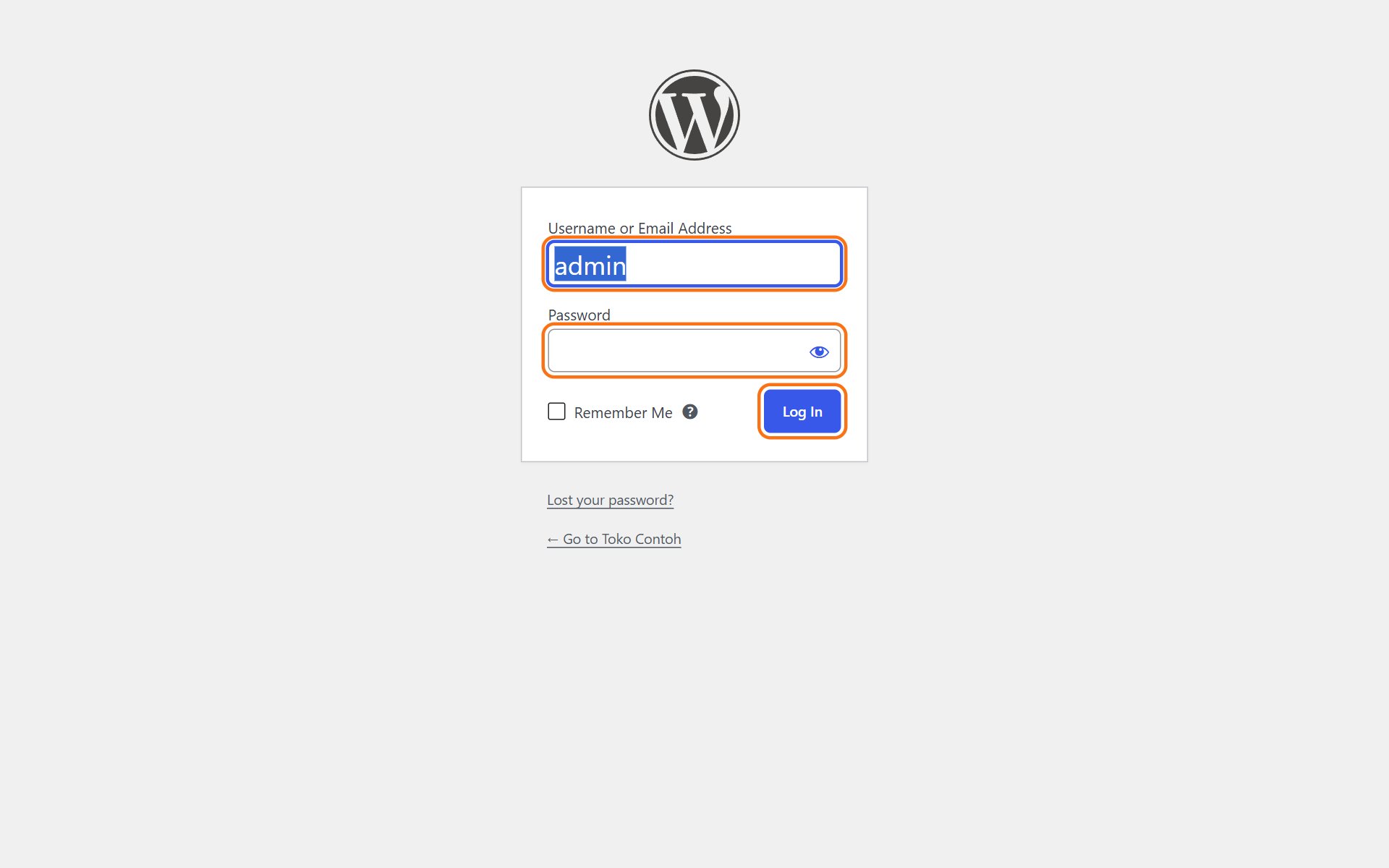
Tick Remember Me only on your own computer.
Signing in from the customer portal
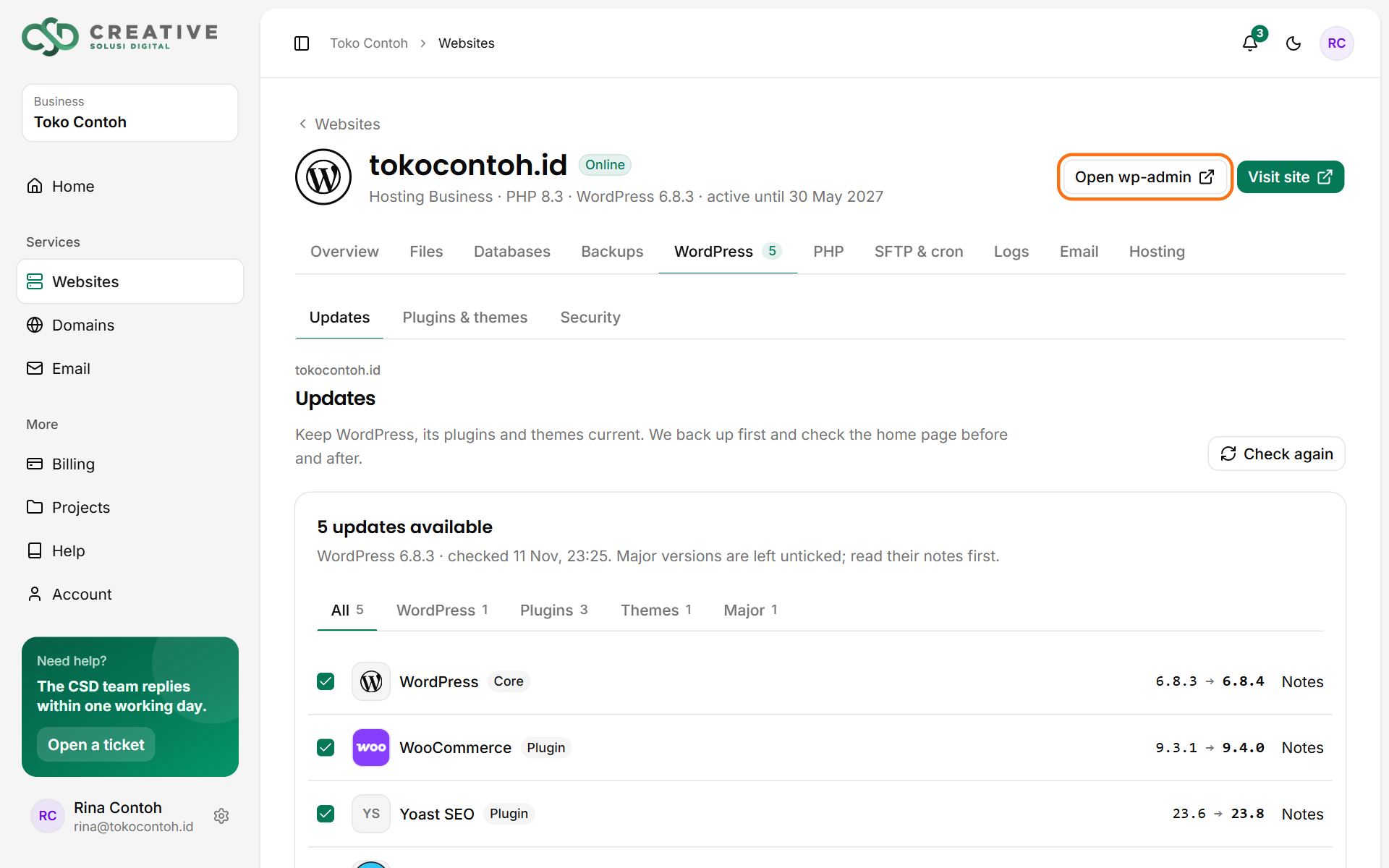
If your website is hosted with us, you can also sign in without a password: open Websites in the portal, choose your website, then click Open wp-admin.
Forgot your password
- On the sign-in page, click Lost your password?.
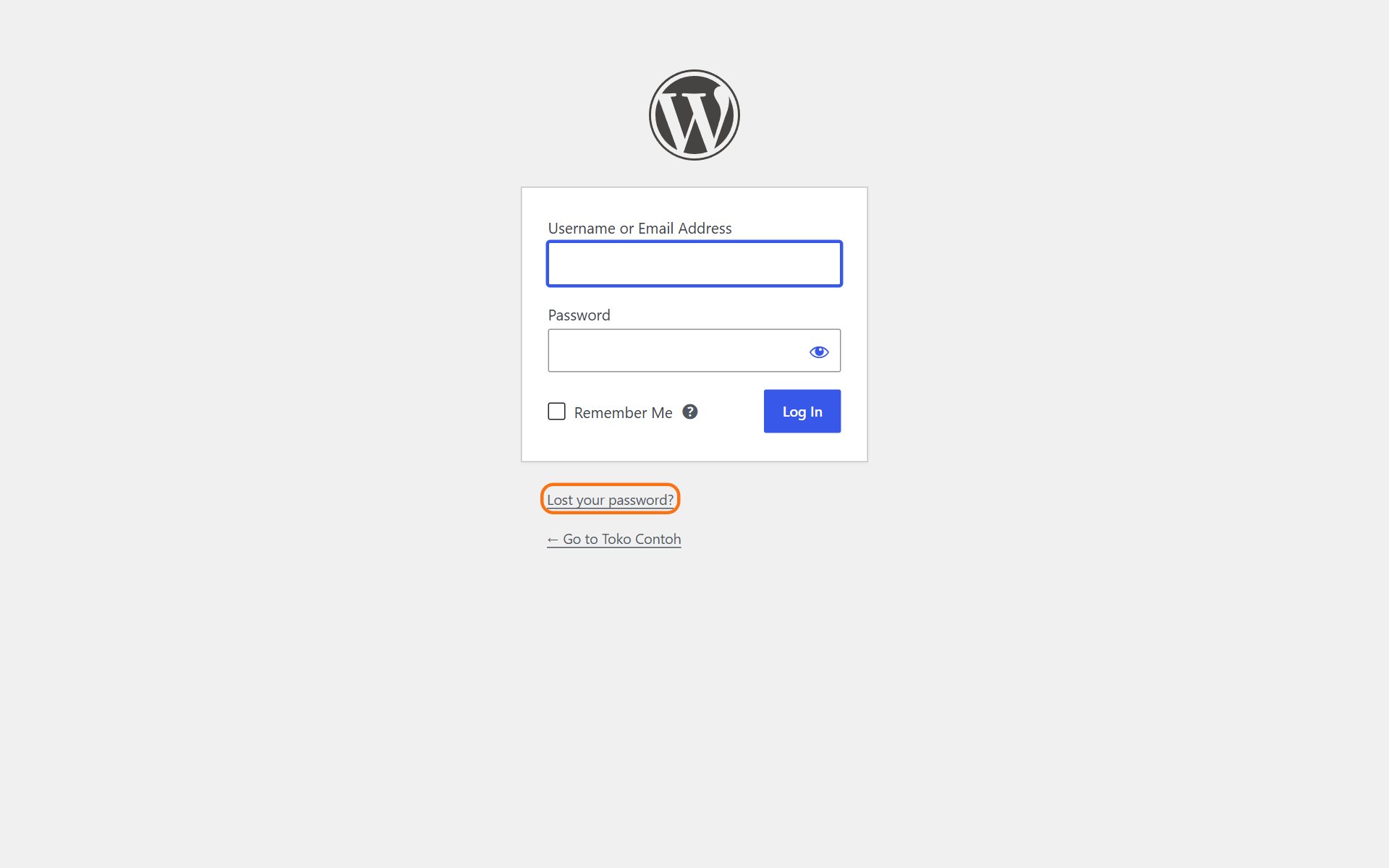
- Enter your account's email and click Get New Password. A link to set a new password is sent to that email.
No email? Check your spam folder, or contact us to reset your account.
Was this article helpful?