
Managing your WordPress website
Made a mistake? Going back to an earlier version
Undo your last steps in Elementor, or bring a page back to a version published earlier.
3 steps1 minUpdated 13 November 2026
Don't worry, changes in Elementor can be undone.
Undoing your last steps
- Press Ctrl+Z (Windows) or Cmd+Z (Mac) to undo the last step. Press again for the step before.
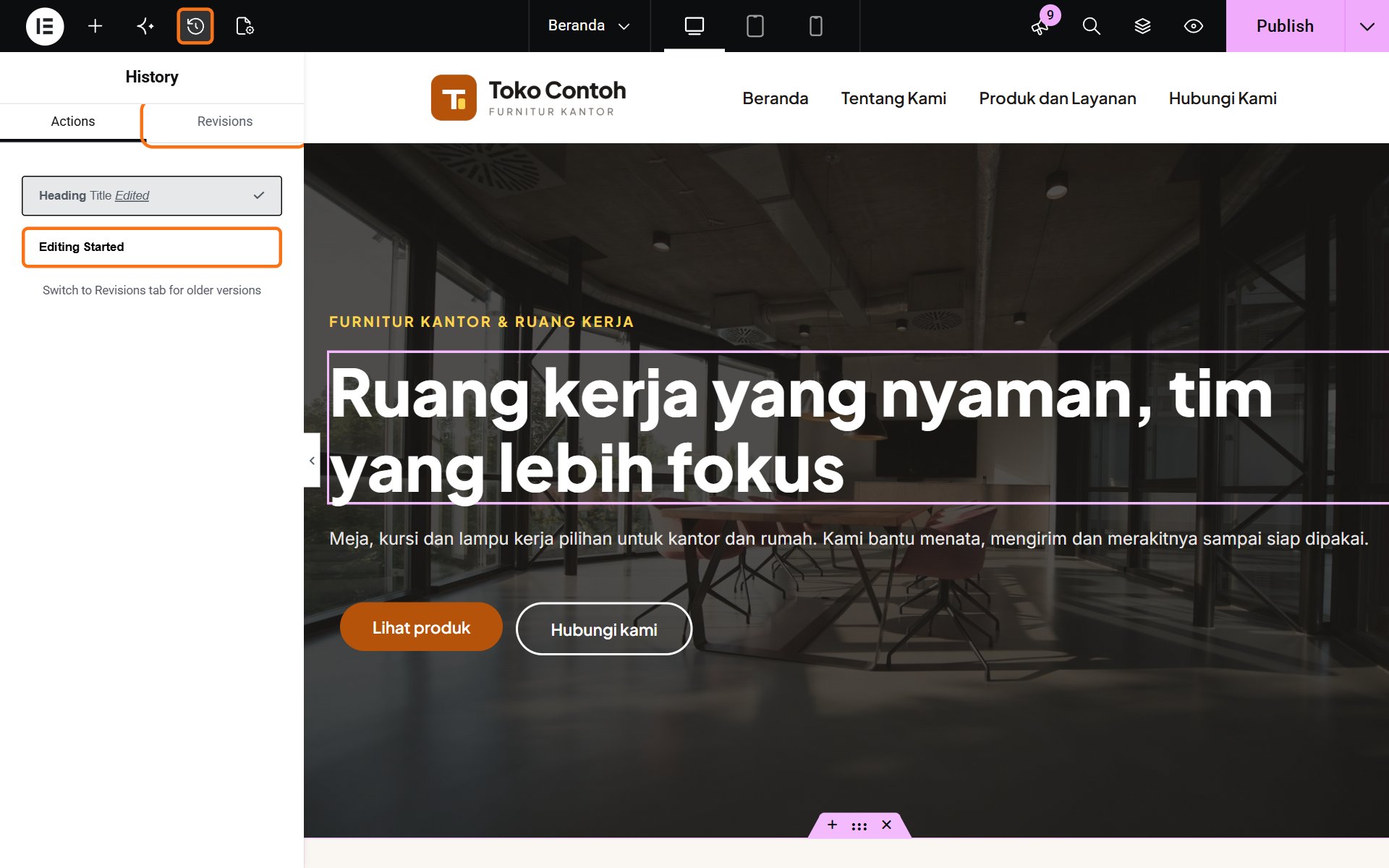
- Or click the clock icon (History) in the top bar. The Actions tab lists every change since the editor opened; click a line to go back to that point.
Going back to a published version
- In the History panel, open the Revisions tab. Each time you click Publish, a version is kept here with its date and who made it.
- Click a version to see it on the page.
- If it is the one you want, click Apply, then Publish.
Haven't clicked Publish yet? Just close the editor without saving and the website stays as it was.
A bigger problem, such as the website not opening? Contact us. Websites hosted with us are backed up every day and can be restored.
Was this article helpful?