
Setting up your work email in Outlook or Thunderbird
Add your work email to Outlook or Thunderbird on a computer with IMAP settings.
8 steps1 minUpdated 12 November 2026
Have your full email address and its password ready. The server names for your domain are also shown in the portal: Email → your domain, under the Mailboxes heading.
| Setting | Value |
|---|---|
| Account type | IMAP |
| Incoming server (IMAP) | mail.yourdomain.com, port 993, SSL/TLS |
| Outgoing server (SMTP) | mail.yourdomain.com, port 465, SSL/TLS (or port 587 with STARTTLS) |
| Username | Your full email address |
| Password | Your email password |
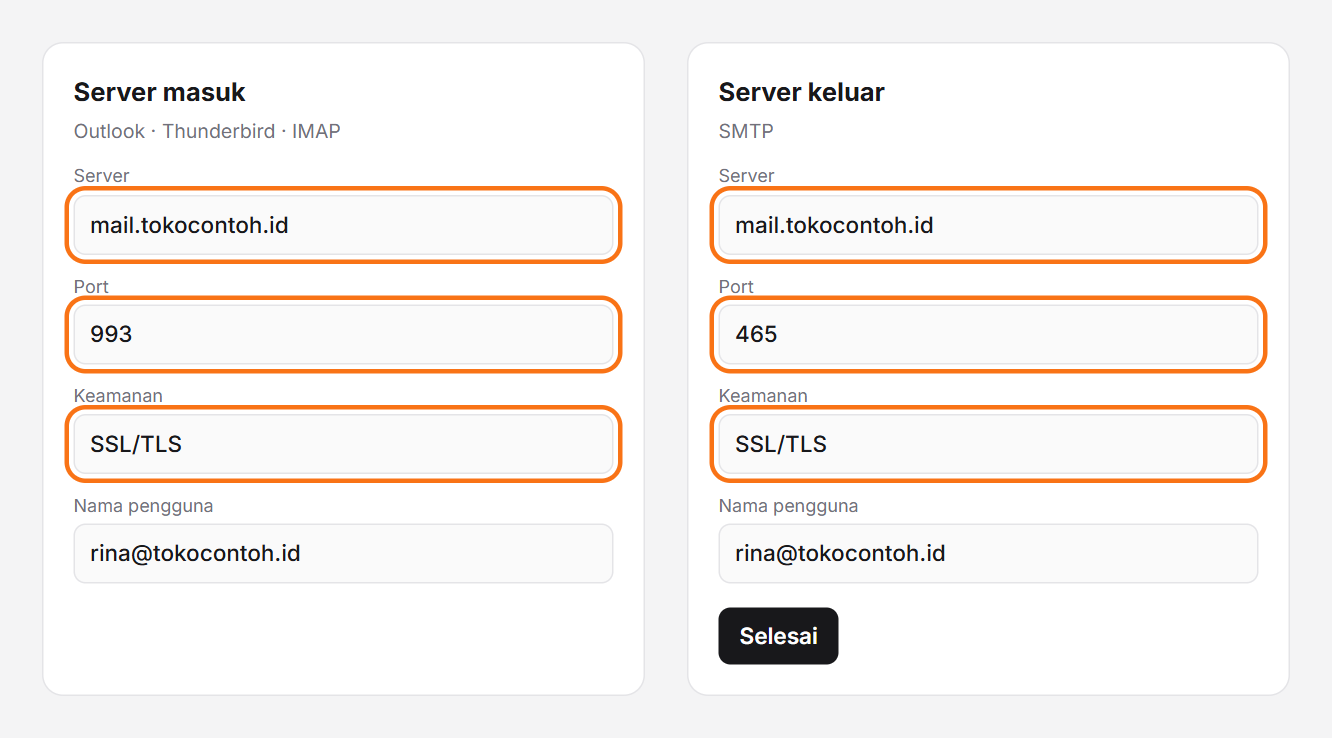
In Outlook
- Open File → Add Account and enter your email address.
- Open Advanced options, tick Let me set up my account manually and choose IMAP.
- Fill in the incoming and outgoing servers from the table above, then enter your password.
- Click Connect and wait for your mail folders to appear.
In Thunderbird
- Open the ☰ menu → Account Settings → Account Actions → Add Mail Account.
- Fill in your name, email address and password, then click Configure manually.
- Choose IMAP and fill in the incoming and outgoing servers from the table above, with SSL/TLS security and Normal password authentication.
- Click Done.
Still not working?
Check the password and the ports again. Some office networks block port 465; try port 587 with STARTTLS. If it still fails, open a support ticket with the error message you see.
Was this article helpful?