
Email landing in spam or not delivered
How to read the SPF, DKIM and DMARC check in the portal, and what to do when your email lands in spam.
2 steps2 minUpdated 12 November 2026
Mail providers such as Gmail and Outlook check whether an email really comes from a server your domain allows. They use three DNS records for this: SPF, DKIM and DMARC. When one of them is not right, your email lands in spam or is refused more easily.
Seeing the check
- Open Email in the portal and choose your domain.
- Look at the Delivery card. Each record has a badge: green is right, red needs fixing. All passed means everything is fine; Needs attention means something is not right yet.
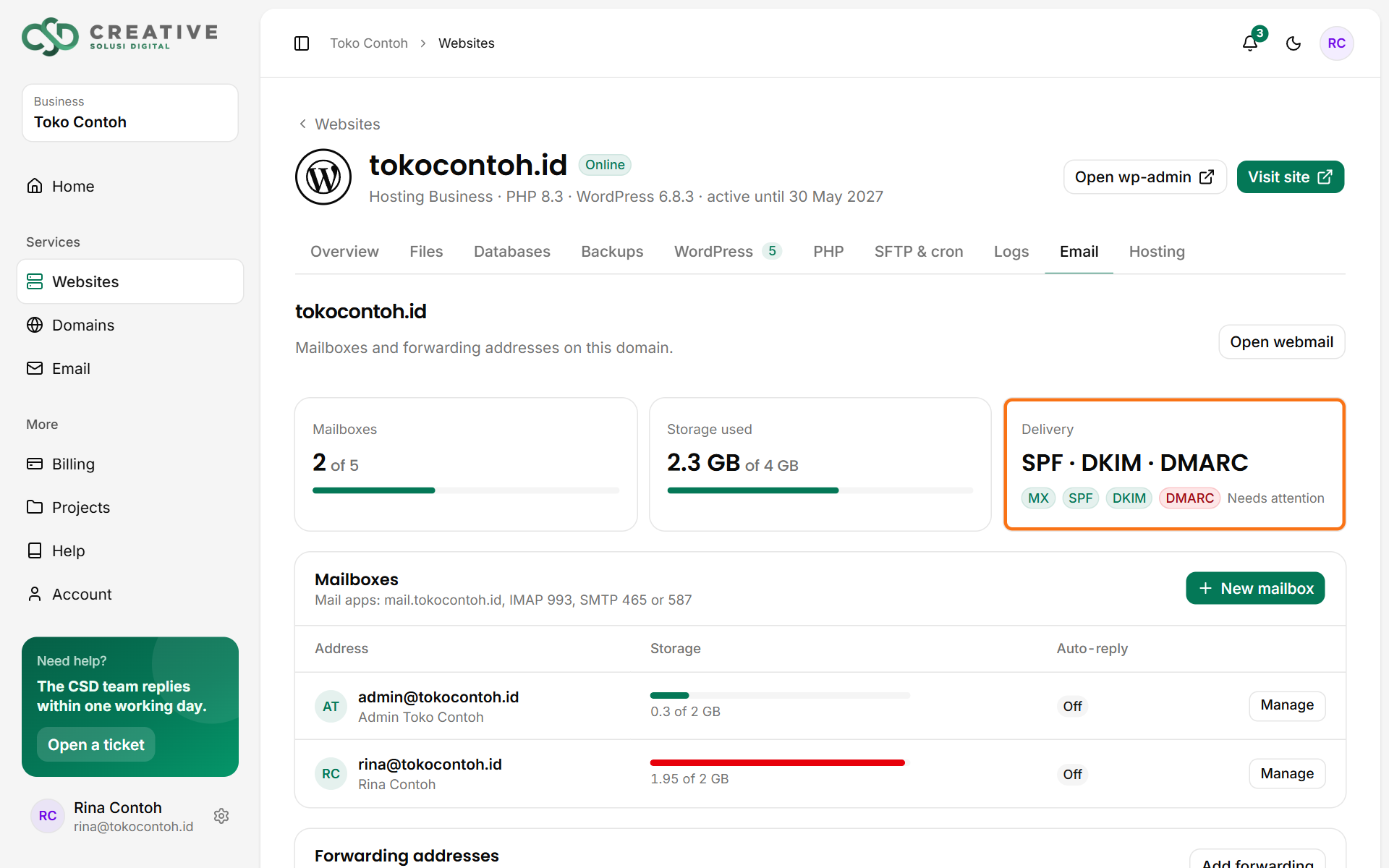
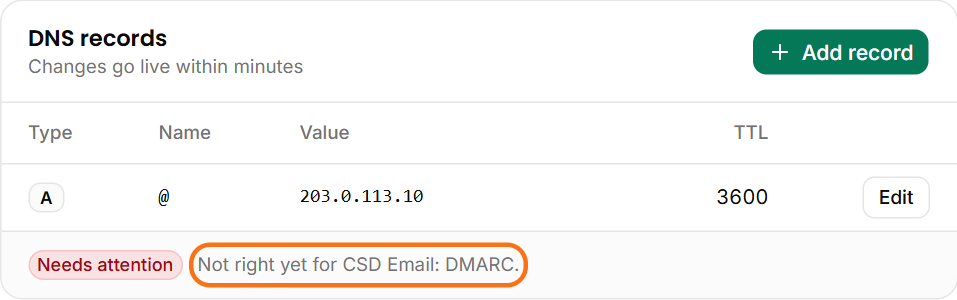
The same result shows under Domains → your domain, below the DNS records table, with the names of the records that are not right.
Fixing it
- Your domain uses our nameservers: open a support ticket with your domain name and we add the missing records.
- Your DNS is managed elsewhere (for example Cloudflare): open a support ticket to ask for the right record values, then add them at your DNS provider. Never add two SPF records; combine them into one.
DNS changes are usually seen within minutes to a few hours. The Delivery card then turns to All passed.
If the records are right but email still lands in spam
- Ask recipients to mark your email as Not spam and to add your address to their contacts.
- Avoid shouting subjects (all capitals, many exclamation marks) and emails that are only an image or a link.
- Do not send bulk email from a normal mailbox. Use an email marketing service for newsletters.
- If an email is refused with an error message, open a support ticket and attach that message.
Was this article helpful?