
How to set up your work email on a phone
Add your work email to an iPhone or Android phone with IMAP settings.
8 steps2 minUpdated 16 October 2026
Have your full email address (for example name@company.com) and its password ready. If you forgot the password, ask your business account's owner or contact support.
Server settings
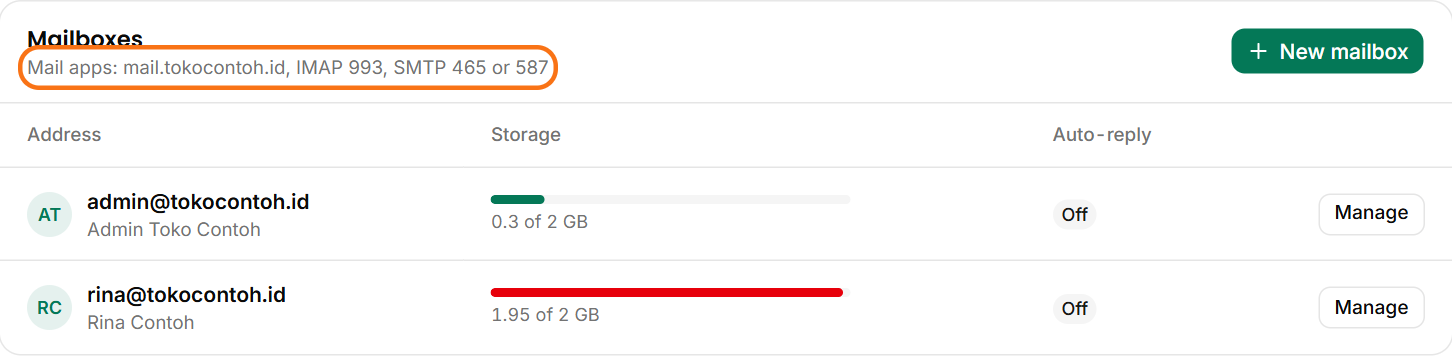
The server names for your domain are also shown in the portal: Email → your domain, under the Mailboxes heading.
| Setting | Value |
|---|---|
| Account type | IMAP |
| Incoming server (IMAP) | mail.yourdomain.com, port 993, SSL/TLS |
| Outgoing server (SMTP) | mail.yourdomain.com, port 465, SSL/TLS |
| Username | Your full email address |
| Password | Your email password (the same for incoming and outgoing) |
On an iPhone
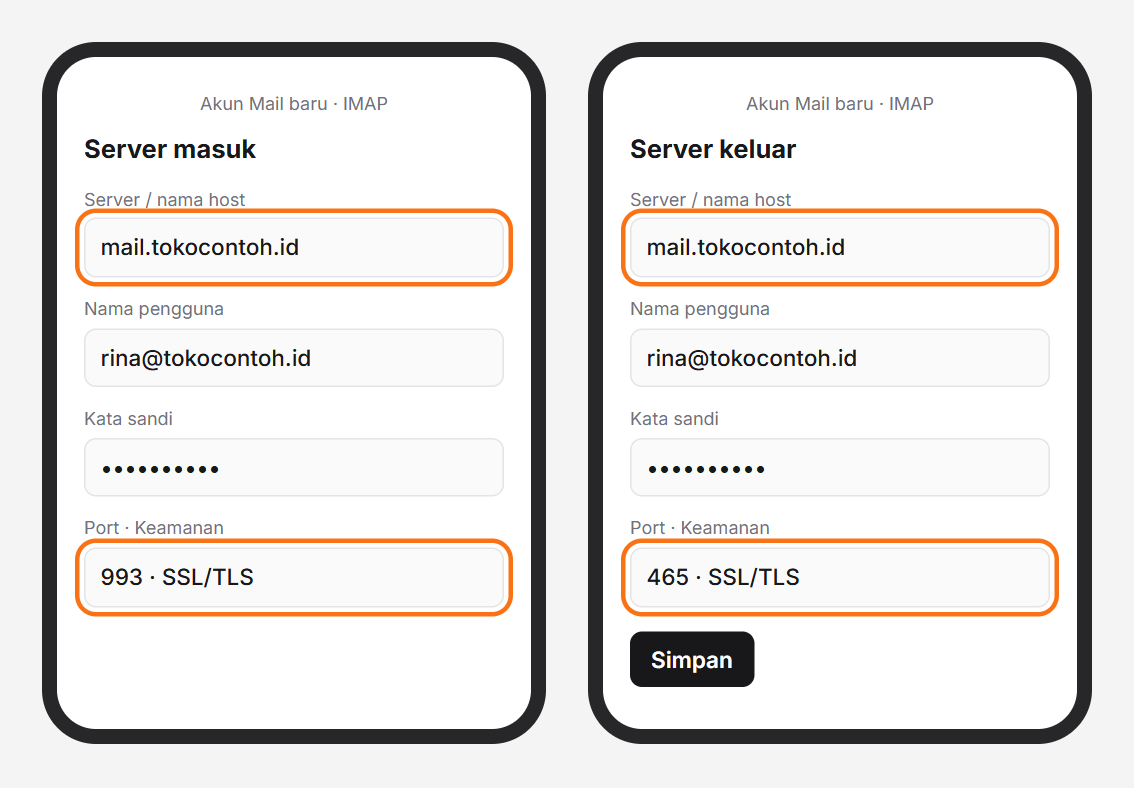
- Open Settings → Mail → Accounts → Add Account → Other → Add Mail Account.
- Fill in your name, email address and password, then tap Next.
- Choose IMAP, then fill in the incoming and outgoing servers from the table above.
- Tap Save.
On Android (the Gmail app)
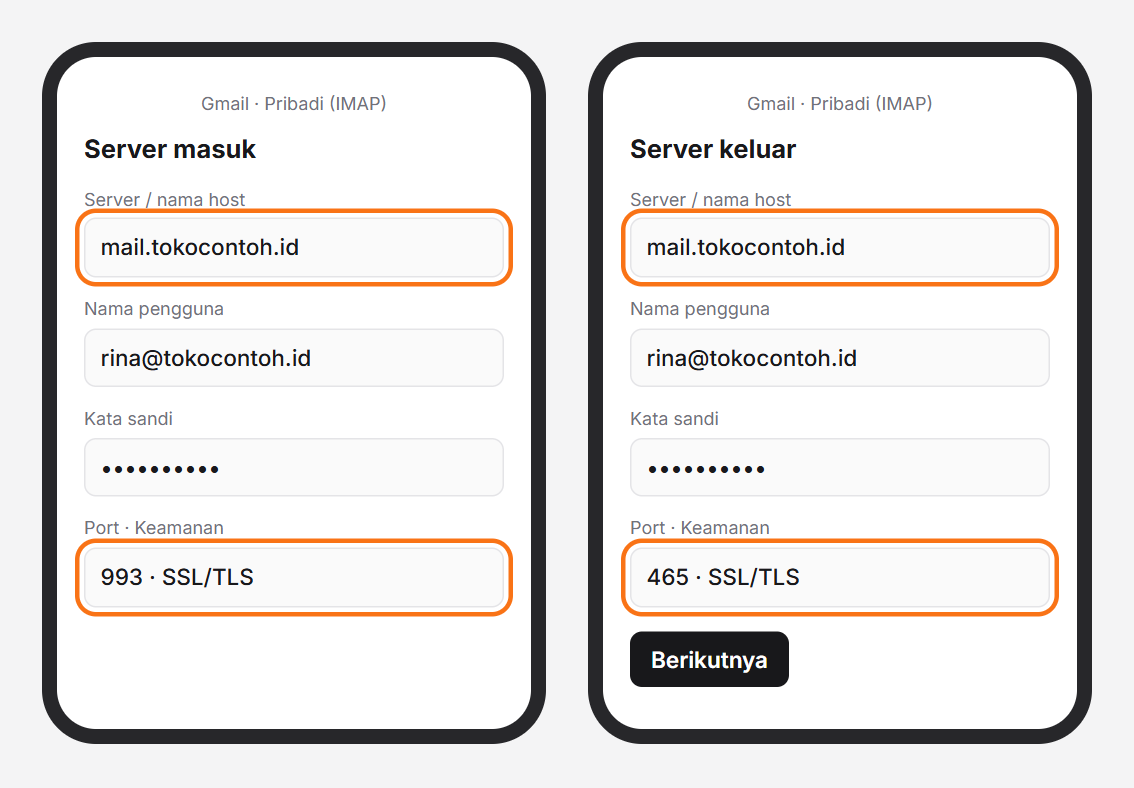
- Open Gmail → your profile picture → Add another account → Other.
- Enter your email address, choose Personal (IMAP), then enter your password.
- Fill in the incoming and outgoing servers from the table above, with SSL/TLS security.
- Finish the steps and wait for the first emails to arrive.
Still not working?
Check the password and the ports again. If it still fails, open a support ticket with the email address and the error message you see.
Was this article helpful?