
Websites and hosting
Connecting a domain from another provider to your hosting
Point a domain managed at Cloudflare, Niagahoster, Domainesia or another provider at your hosting, then add the website from the portal.
Domains registered with CSD are pointed automatically. If your domain is managed elsewhere, change one DNS record there, then add the website from the portal.
1. Find your hosting's address
Open Websites → your website → the Hosting tab → Add a website to this plan and type the domain or subdomain. The box below it shows your hosting's IP address and checks the DNS of each name.
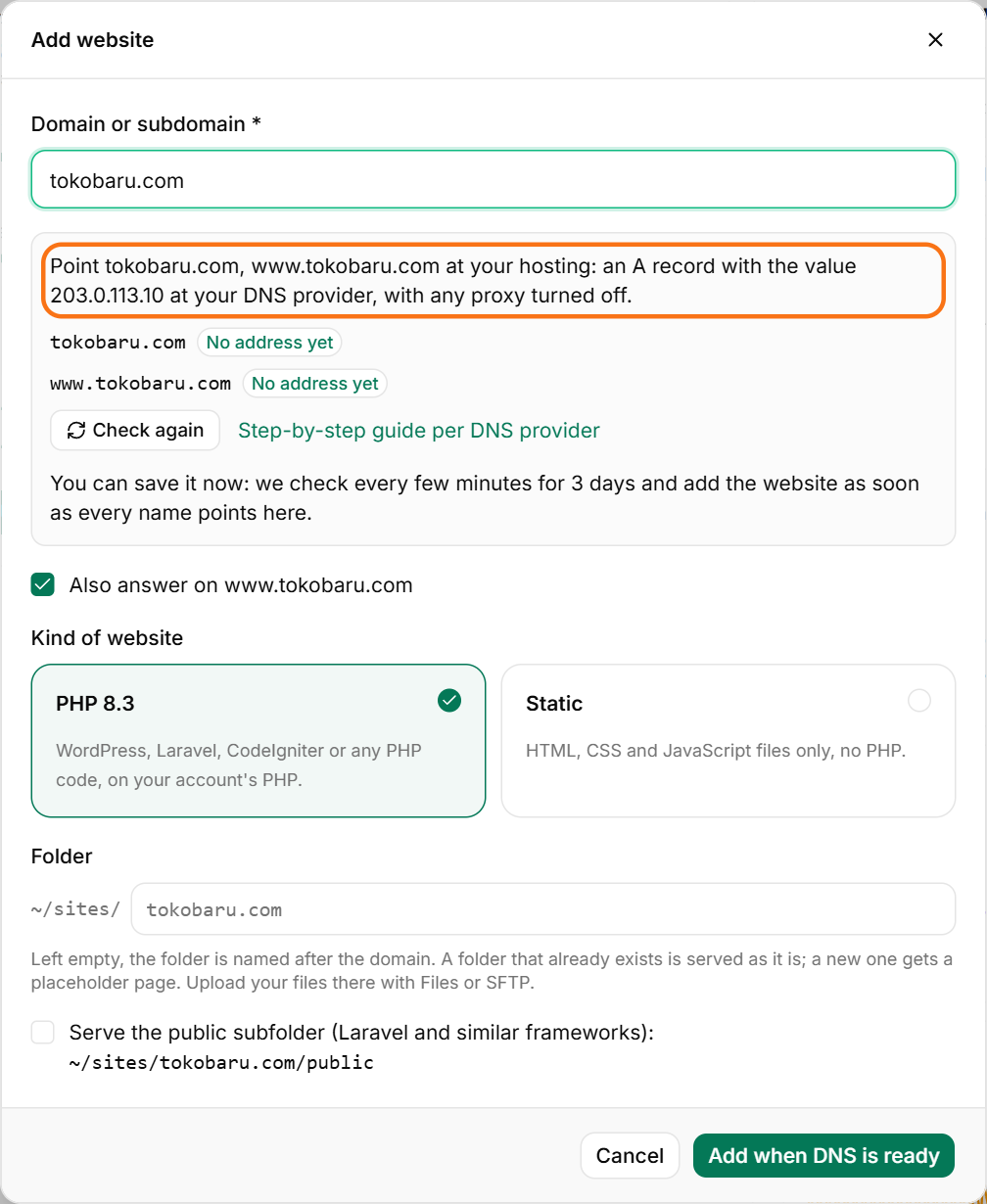
2. Add an A record at your DNS provider
For the domain itself (e.g. tokobaru.com) add a record with Type A, Name @ and that IP address as the Value; add another with Name www if you use it. For a subdomain (e.g. shop.example.com) the Name is shop.
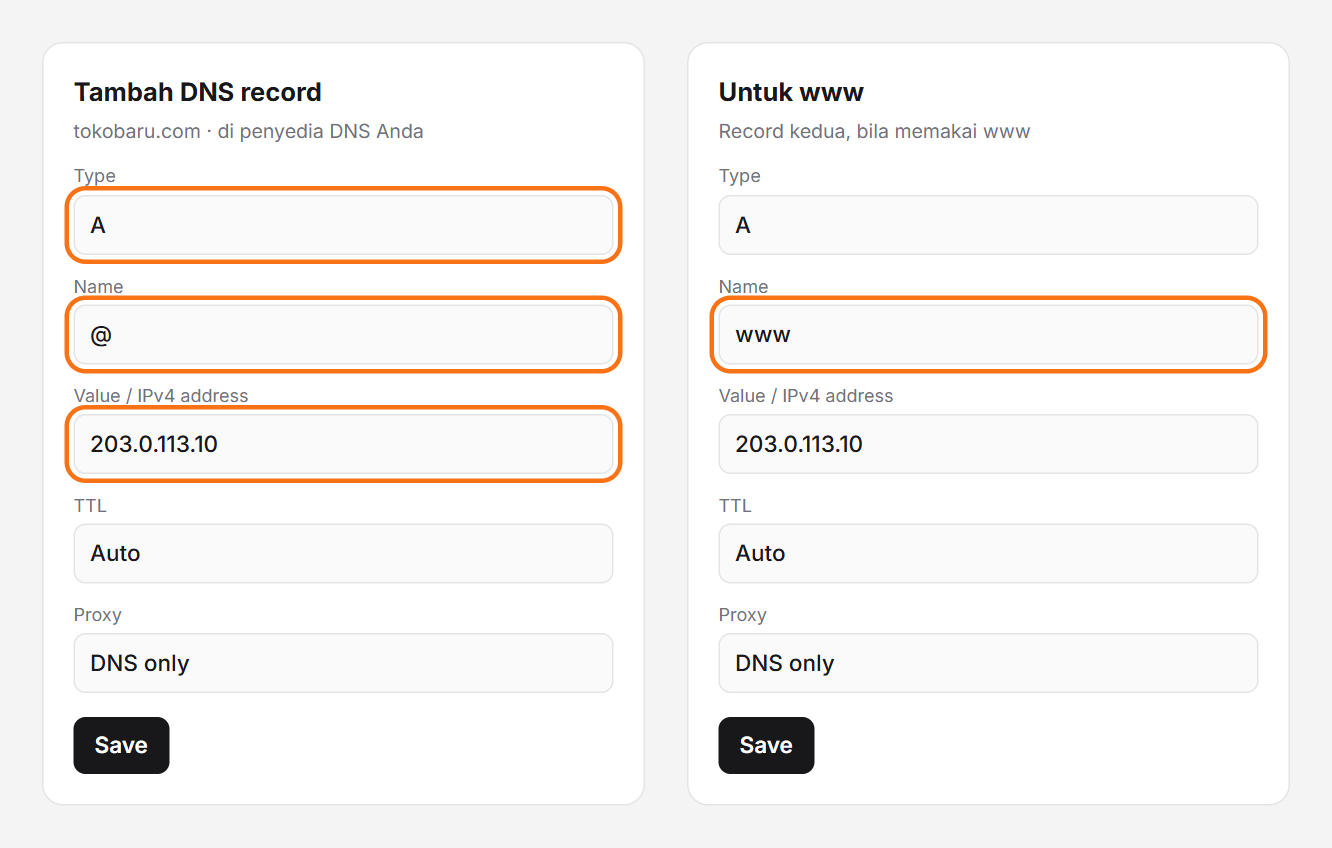
- Cloudflare: DNS → Records → Add record. Set Proxy status to DNS only (grey cloud) for now; you can turn the proxy on again once the website and its HTTPS work.
- Niagahoster, Domainesia, Rumahweb, IDwebhost and similar: in the member area open your domain → DNS Management and add the A record. The domain must use that provider's nameservers.
- cPanel elsewhere: Zone Editor → Manage → Add Record → A.
Delete other records of the same name that still point at the old server: other A records, a CNAME, or an AAAA (IPv6) record. Otherwise some visitors keep reaching the old server.
3. Add the website
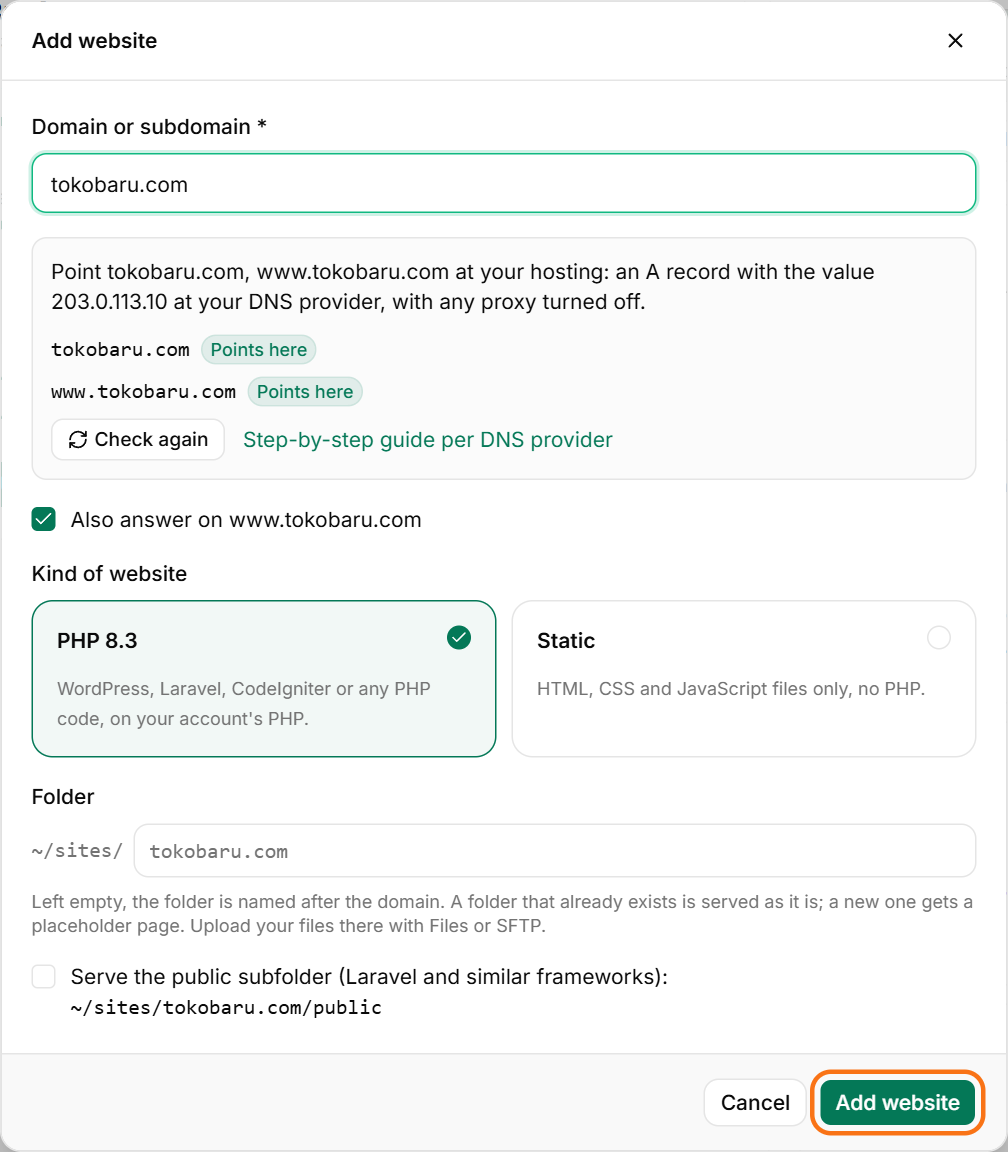
Back in Add website, each name shows where it points:
- Points here: ready.
- No address yet, Points elsewhere, Also points elsewhere: change the record as shown under it.
- Behind Cloudflare proxy: switch it to DNS only.
- IPv6 points elsewhere: delete the AAAA record.
When every name is ready, press Add website; it is live with HTTPS in about a minute.
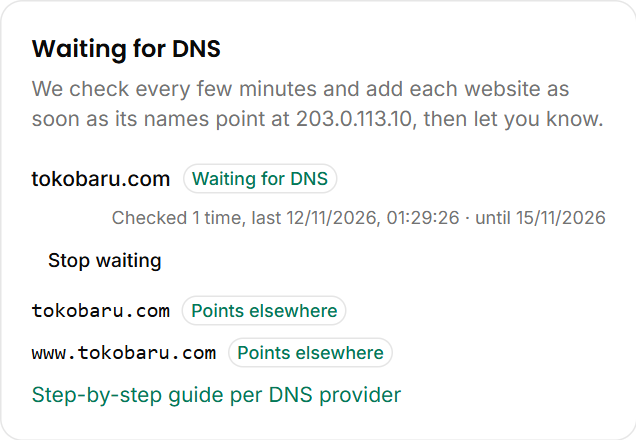
DNS changes can take minutes to hours. You do not have to wait: press Add when DNS is ready. We check every few minutes for 3 days, add the website once its DNS is right and let you know. Waiting websites are listed under Waiting for DNS, where you can stop waiting.
4. Upload the website
The new website has its own folder in ~/sites/. Upload its files through Files or SFTP, and create a database under Databases if it needs one.
Email stays where it is
Changing the A record moves only the website. MX (email) records stay as they are, so your email keeps working.